CANable 2.0 Adapter Installation Guide
Table of contents
Table of contents
Overview
This document provides a comprehensive guide on installing and wiring a USB-to-CAN adapter—specifically the CANable 2.0—for Windows or Linux PCs and standalone Raspberry Pi systems. Aimed at bridging the gap between your computer and CAN networks, this manual covers the essentials from acquiring a CANable device, updating its firmware to slcan, establishing the hardware connection, configuring JMRI software, to testing the connection with your LCC Node. Whether you’re integrating with JMRI for model railroad automation or any other CAN network application, this guide ensures a smooth setup process, enhanced by illustrative images and step-by-step instructions to facilitate your understanding and implementation.
Bonus Option (RPI-CAN Card): If you’re using the RPI-CAN Card in your Node Bus Hub, you don’t need any external CANable adapter at all—the RPi itself is bridged directly onto the CAN network via the hub connections.
What’s Needed
| Component | Purpose |
|---|---|
| Computer | Runs JMRI for CAN communications with Node Card |
| USB-CAN Adapter (aka. CANable Device) | Interfaces Windows computer’s USB interface with CAN communication networks (aka CAN Bus) |
| Node Card & Power Supply | Interfaces with CAN network and cards (via Node Bus Hub) |
| Network Cable (CAT5/CAT6) | Connects Digital I/O Card to Digital I/O Breakout Board via RJ45 connector |
Connection Diagram
flowchart LR;
computer["Computer"];
n["Node Card, or <br/> Power-CAN Card"];

subgraph layout ["Train Layout"];
direction LR;
computer <--> |"USB Plug"| adapter["CANable 2.0 <br>Adapter"];
adapter <--> |"CAN Network <br/> (network cable)"| n;
end

classDef lSalmonStyle fill:#FFA07A,stroke:#333,stroke-width:2px,font-size:24px;
class adapter lSalmonStyle;
classDef lightGrayStyle fill:#d3d3d3,stroke:#333,stroke-width:2px,font-size:24px;
class layout lightGrayStyle;
Installation Steps
Acquiring a USB-CAN Adapter (aka. CANable Device)
- Purchase a CANable 2.0 Adapter. CANable is an open-source hardware that serves as a USB to CAN adapter, essential for connecting to CAN networks.
- Ensure the device either:
- Comes pre-installed with slcan firmware (instead of Candlelight firmware), or
- Is capable of entering DFU Download mode, enabling firmware updates from Candlelight to slcan firmware (detailed below).
- Find a CANable device by searching ‘ CANable’ on AliExpress: https://www.aliexpress.us/w/wholesale-canable.html?spm=a2g0o.home.search.0
Firmware Update Steps
To use the CANable device with JMRI, it must be updated to sclan firmware to be recognized as a virtual COM port by Windows.
Follow these steps to update your CANable device to slcan firmware, ensuring compatibility with JMRI:
- Switch to DFU Mode:
- Each type of CANable adapter has a unique method of entering into DFU Mode which allows for updating the adapter’s firmware. To install the slcan firmware, the adapter must be placed into DFU mode before connecting the adapter via USB cable to the Windows computer.
- Using your adapter’s documentation for updating the firmware, enable DFU (Device Firmware Update) Mode by using one of the following methods:
- small dip switch located on the adapters PCB with two positions; DFU mode and normal operations mode.
- shorting out 2 pins (DFU and 3V3)
- holding the DFU button during while inserting the adapter into a computer USB port
- Chrome Preparation for Device Recognition:
- Execute the ImpulseRC Driver Fixer to allow Chrome to detect the device: https://canable.io/utilities/ImpulseRC_Driver_Fixer.exe
- Updating the USB-CAN Adapter (CANable) Firmware:
-
Utilize the CANable.io firmware updater utility to update the adapter firmware to slcan. The firmware update is performed directly through this webpage: CANable Firmware Updater.
- Switch the adapter to DFU mode and connect it to the USB port of a Windows computer.
- Access the link above and choose a slcan version from the dropdown menu.
- Ensure the device is recognized; if not, confirm it is in DFU mode.
- Click the
Connect and Updatebutton to initiate the firmware update. - In the subsequent popup, select
STM32 BOOTLOADER - Pairedand clickConnect. - Choose the device’s name from the displayed list to proceed.
- A message stating
Erasing DFU device memorywill appear; wait during this process. Copying data from browser to DFU devicewill display next; please wait as the firmware transfers.- A confirmation message,
Wrote 27332 bytes, indicates the firmware has been successfully updated. - Click
Disconnect. - Reset the adapter to exit DFU mode and return to normal operation.
-
- Return to Normal Operating Mode:
- If a switch was utilized for entering DFU Mode, revert the CANable device to its regular (Work) mode after the update.
Connecting to the LCC CAN Network
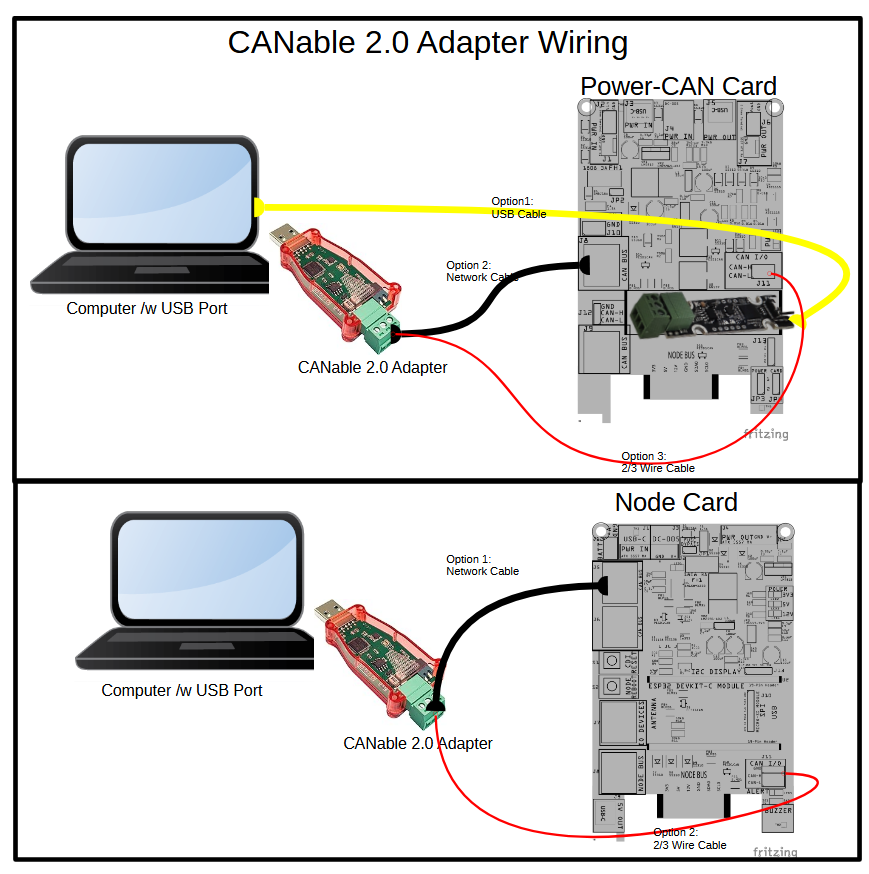 Use one of the following methods to integrate a CANable 2.0 adapter into your LCC Fusion system—choose the option that fits your card and installation style. In every case, your computer will be linked to the full CAN network.
| Card | Connection Type | Connector | Wiring | Notes |
|---|---|---|---|---|
| Node Card | CAN BUS (3-wire) | J5/J6 (RJ45 socket pins 1–3) | CAN_H ⇄ pin 1, CAN_L ⇄ pin 2, GND ⇄ pin 3 | Standard non-isolated CAN interface. |
| Power-CAN Card | CAN BUS (3-wire) | J8/J9 (RJ45 socket pins 1–3) | CAN_H ⇄ pin 1, CAN_L ⇄ pin 2, GND ⇄ pin 3 | Standard non-isolated CAN interface. |
| Power-CAN Card | CANable “remote” (2-wire) | J11 (3-pin header) | CAN_H ⇄ J11-1, CAN_L ⇄ J11-2 | Opto-isolated CAN via onboard isolators; run a two-wire cable from your USB-dongle to J11. |
| Power-CAN Card | CANable “on-card” (2-wire) | J12 (3-pin socket) | CAN_H ⇄ J12-1, CAN_L ⇄ J12-2 | Screw the adapter to J12 and use a short USB cable to PC or RPi. Opto-isolated on J12. |
Notes:
- Both cards also support wiring a 2- or 3-wire adapter into their CAN BUS RJ-45 sockets by crimping CAN_H, CAN_L (and GND if needed) onto an RJ-45 plug (see “Wiring a CANable into the CAN BUS RJ-45 socket”).
- A “3-wire” CANable module simply brings out CAN_H, CAN_L, and GND—it does not guarantee galvanic isolation. Most adapters are non-isolated; the Power-CAN Card’s J11/J12 ports add isolation on the CAN lines, so a separately isolated dongle isn’t required.
- Choose the method that best fits your installation: off-board dongle on Node or Power-CAN via CAN BUS, or remote/on-card mounting on Power-CAN.
Wiring a CANable into the CAN BUS RJ-45 socket
The following describes how to modify a network cable to connect from the Node Card CAN BUS RJ45 socket to the CANable device.
-
Remove the RJ45 plug from one end of the cable to reveal the 8 internal wires.
-
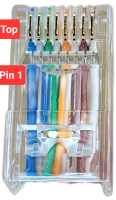 On the opposite end, identify the first three wires by looking at the RJ45 plug’s back with the tab facing downwards.
 -
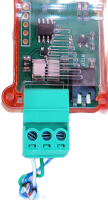 Connect these to the USB-CAN adapter:
Network Cable Wire USB-CAN Adapter Screw Terminal 1 (leftmost wire, from left to right) CAN-L 2 (second wire) GND 3 (third wire) CAN-H -
Insert the cable’s RJ45 connector into one of the two
CAN BUSconnections (RJ45 sockets) on either the LCC Fusion Node Card, Power-CAN Card, or other *LCC compatible nodes *.
Final Hardware Setup Steps
- Activate the CAN termination switch to the ON position for this adapter since it is located at one end of the CAN network. It’s crucial to also configure a CAN termination at the network’s other end, which is most likely to be on an LCC Node, to ensure proper network functionality.
-
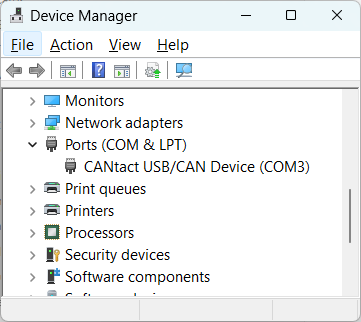 Plug the USB to CAN device into a USB port on the computer.
 - To determine the Windows COM port used by the adapter open the Windows Device Manager and view the COM ports. The device CANtact USB/CAN Device (COMx) should be shown, along with the COM port. Use this COM port below when configuring JMRI.
-
Note that ‘modern’ versions Windows will automatically find/install the device driver required to support the USB to CAN device. For older versions of Windows, following the information found at https://canable.io/getting-started.html#drivers
Safety Notes
- Disconnect power before making or changing device connections.